

SSH (Secure Shell) allows you to securely access and manage your hosting account through a command-line interface (CLI). This is useful for website administration, file management, Git deployments, Composer, WP-CLI, Drush, and other development tasks.
This guide explains how to connect to a hosting account using SSH key authentication with PuTTY and Pageant on Windows. Unlike other SSH setup methods, this guide requires Pageant to be used as the SSH authentication agent.
Requirements
Before starting, make sure you have the following:
- PuTTY
- PuTTYgen
- Pageant
- SSH access enabled on your hosting account
- Your hosting server hostname or IP address
- Your cPanel username
Note
This tutorial specifically uses Pageant as part of the authentication process. If you prefer to manually select your private key within PuTTY each time you connect, refer to a separate guide that does not require Pageant.
What is Pageant?
Pageant is an SSH authentication agent included with the PuTTY suite.
Instead of manually loading your private key for every SSH session, Pageant keeps your SSH key loaded in memory after you enter its passphrase. PuTTY can then automatically use the key when connecting to servers.
Typical workflow:
- Start Pageant
- Load your private key
- Enter your passphrase
- Open PuTTY
- Connect to your server
- Enter your hosting account username
Step 1. Generate an SSH key using PuTTYgen
- Open PuTTYgen.
- Click Generate.
- Move your mouse randomly inside the blank area until the key generation process completes.
- Configure the following:
- Key type: RSA
- Key size: 2048 or 4096 bits
- Key passphrase: we recommend using password generators such as 1Password

5. Click Save private key.
6. Save the .ppk file in a secure location.

7. Copy the text shown under:
- Public key for pasting into OpenSSH authorized_keys file

- Public key for pasting into OpenSSH authorized_keys file
You will need this public key in the next step (Step 2.5).
Step 2. Upload the public key in cPanel
- Log in to your hosting account.
- Navigate to:
- cPanel → SSH Access → Manage SSH Keys

3. Click Import Key.

4. Enter a key name.
5. Paste the copied key into the Public Key field (the key in the Putty Key Generator, see screenshot).
6. Leave the Private Key field blank.
7. Click Import.

Important
Only upload the public key.
Never upload your .ppk private key to the server. Your private key should remain securely stored on your local computer.
Step 3. Authorize the SSH key
After importing the key:
- Return to Manage SSH Keys.

2. Locate the imported key.
3. Click Manage.

4. Click Authorize.

Important
Importing a key does not automatically activate it.
The key must be authorized before SSH authentication will work.

Step 4. Load the SSH key into Pageant
- Open Pageant.
- You can find the Pageant icon in the system tray at the bottom-right corner of your taskbar. If it’s hidden, click the small arrow (˄) to show hidden icons, then look for the Pageant icon there and right-click.

- You can find the Pageant icon in the system tray at the bottom-right corner of your taskbar. If it’s hidden, click the small arrow (˄) to show hidden icons, then look for the Pageant icon there and right-click.
- Click Add Key or load your .ppk file.
- Select the private key generated earlier.
- Enter your SSH key passphrase when prompted.
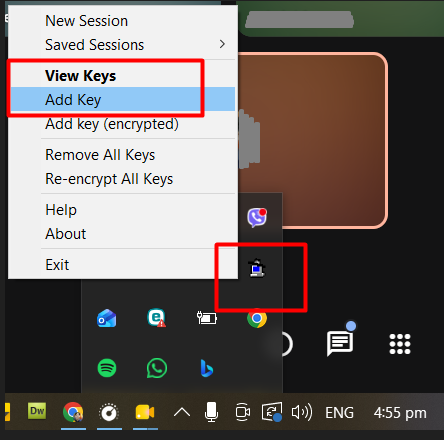

The key is now stored in memory and available for SSH authentication.
Step 5. Connect using PuTTY
- Open PuTTY.
- Enter:
- Host Name: your server hostname or IP address
- Port: usually 22
- Ensure Pageant is running with your SSH key already loaded.
Click Open.
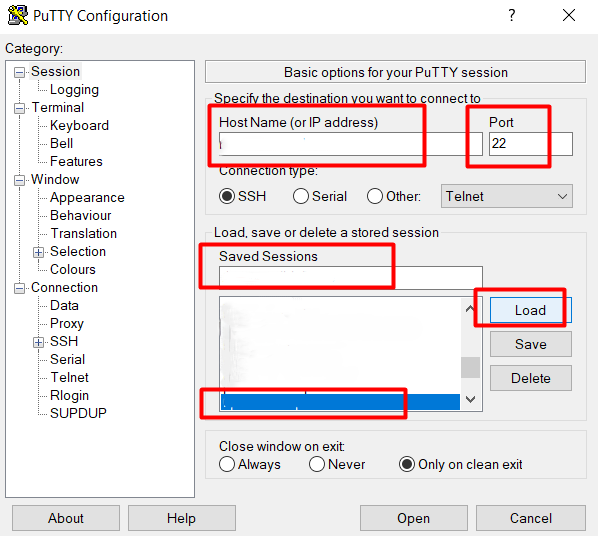
Because the key is already loaded into Pageant, PuTTY will automatically attempt SSH key authentication.
Step 6. Log in
When prompted:
Username:
- Your cPanel account username

You should not need to manually select your key because Pageant is already handling the authentication.
If prompted for a passphrase, verify that your key is properly loaded in Pageant.
Verifying your SSH connection
After a successful login, you should see a command prompt similar to:
username@server [~]$
You can now manage files and run commands on your hosting account.
Useful Linux commands
| Command | Description |
| pwd | Show current directory |
| ls | List files and directories |
| ls -la | List all files including hidden files |
| cd foldername | Change directory |
| cd .. | Go up one directory |
| mkdir foldername | Create a directory |
| mkdir -p folder/subfolder | Create nested directories |
| touch filename | Create an empty file |
| cat filename | Display file contents |
| nano filename | Edit a file using Nano |
| cp source destination | Copy a file |
| cp -r source destination | Copy a directory recursively |
| mv oldname newname | Move or rename a file |
| rm filename | Delete a file |
| rm -rf directoryname | Force delete a directory and its contents |
| find . -name “filename” | Search for a file by name |
| grep “text” filename | Search for text within a file |
| grep -r “text” . | Search recursively in files |
| chmod 755 filename | Set file permissions |
| chmod -R 755 foldername | Set permissions recursively |
| chown user:user filename | Change file ownership |
| chown -R user:user foldername | Change ownership recursively |
| df -h | Show disk space usage |
| du -sh | Show current folder size |
| du -sh * | Show sizes of files and folders |
| ps aux | List running processes |
| top | Monitor system processes |
| kill PID | Stop a process |
| kill -9 PID | Force stop a process |
| history | Show command history |
| clear | Clear terminal screen |
| wget URL | Download a file |
| curl -I URL | Show HTTP headers |
| curl -O URL | Download a file |
| tar -cvf archive.tar folder | Create TAR archive |
| tar -xvf archive.tar | Extract TAR archive |
| tar -czf archive.tar.gz folder | Create compressed TAR archive |
| tar -xzf archive.tar.gz | Extract compressed TAR archive |
| zip -r archive.zip folder | Create ZIP archive |
| unzip archive.zip | Extract ZIP archive |
| tail -f error_log | Monitor a log file in real time |
| ssh username@hostname | Connect to a remote server |
| exit | End SSH session |
Common command options
| Option | Description |
| -a | Include hidden files |
| -f | Force operation |
| -h | Human-readable format |
| -i | Interactive mode |
| -l | Long listing format |
| -n | Specify number of lines |
| -O | Save file using original filename |
| -p | Preserve attributes or create parent directories |
| -r | Recursive operation |
| -R | Recursive operation (uppercase variant) |
| -s | Summary output |
| -v | Verbose output |
| -x | Extract archive |
| -z | Use gzip compression |
Common SSH issues
Authentication failed
Possible causes:
- Public key was not imported
- SSH key was not authorized
- Wrong username
- Wrong private key loaded in Pageant
Server refused our key
Possible causes:
- Key not authorized
- Incorrect public key uploaded
- Different private key loaded in Pageant
Connection timed out
Possible causes:
- Wrong hostname
- Wrong port
- Firewall restrictions
- SSH access disabled by hosting provider
Security recommendations
- Use a strong passphrase on your private key
- Never share your private key
- Never upload your private key to the server
- Remove unused SSH keys from hosting accounts
- Use SSH key authentication instead of password-only authentication whenever possible
Summary
- Generate an SSH key using PuTTYgen.
- Save the private .ppk key.
- Upload the public key to cPanel.
- Authorize the key.
- Load the private key into Pageant.
- Open PuTTY and connect to the server.
- Log in using your hosting account username.
- Begin managing your hosting account via SSH.


